Edit precisely
Snapping, trimming, splitting, clip speed, freeze frames, timeline zoom, keyboard transport, multi-select, and cross dissolves.

Video editing for macOS
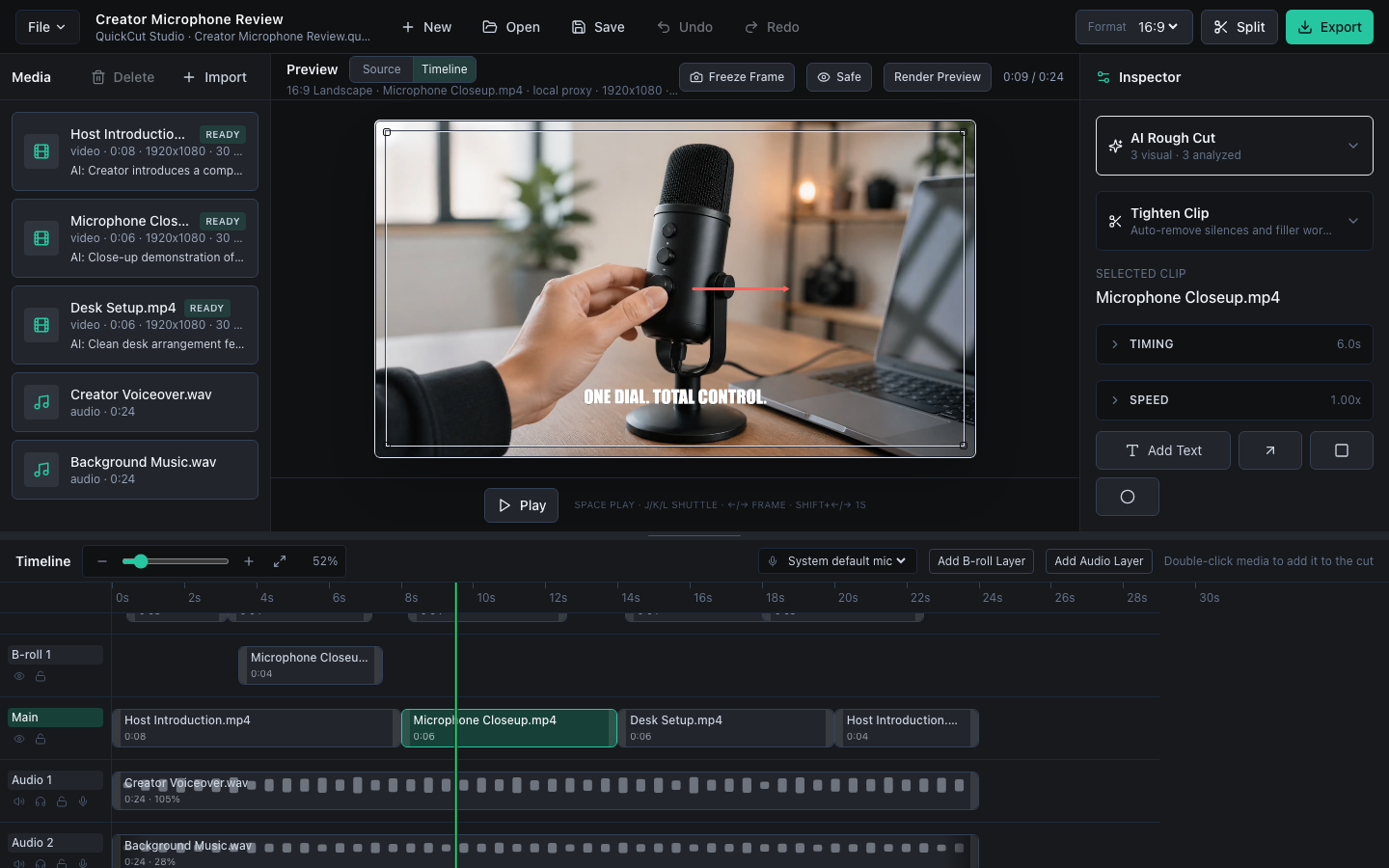
A focused editor for creators who want more control than a basic movie app without carrying the weight of a production suite.
The creator workspace
Browse media on the left, watch the edit in the center, tune the selected object in the inspector, and shape the story on a clean multi-layer timeline.
01 / Find the right take
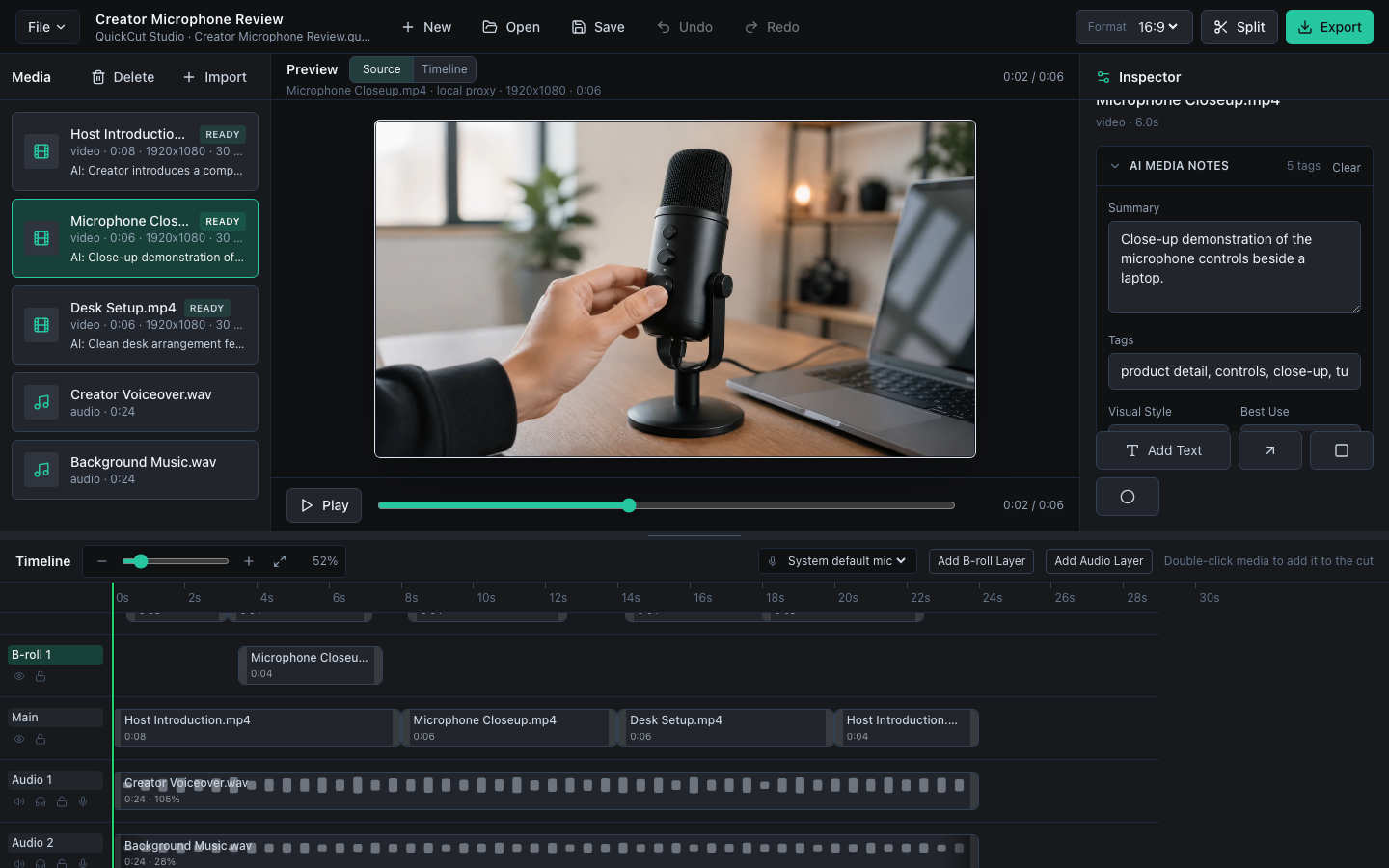
Open a video directly from the media bin, scrub through it, and inspect its details before adding it to the timeline. Optional AI descriptions and editable tags make larger media collections easier to understand and search.
02 / Shape the story
Trim, split, snap, reorder, and select groups of clips across the main, B-roll, text, and audio layers. Use the tools you need without opening a maze of production panels.
03 / Make the message clear
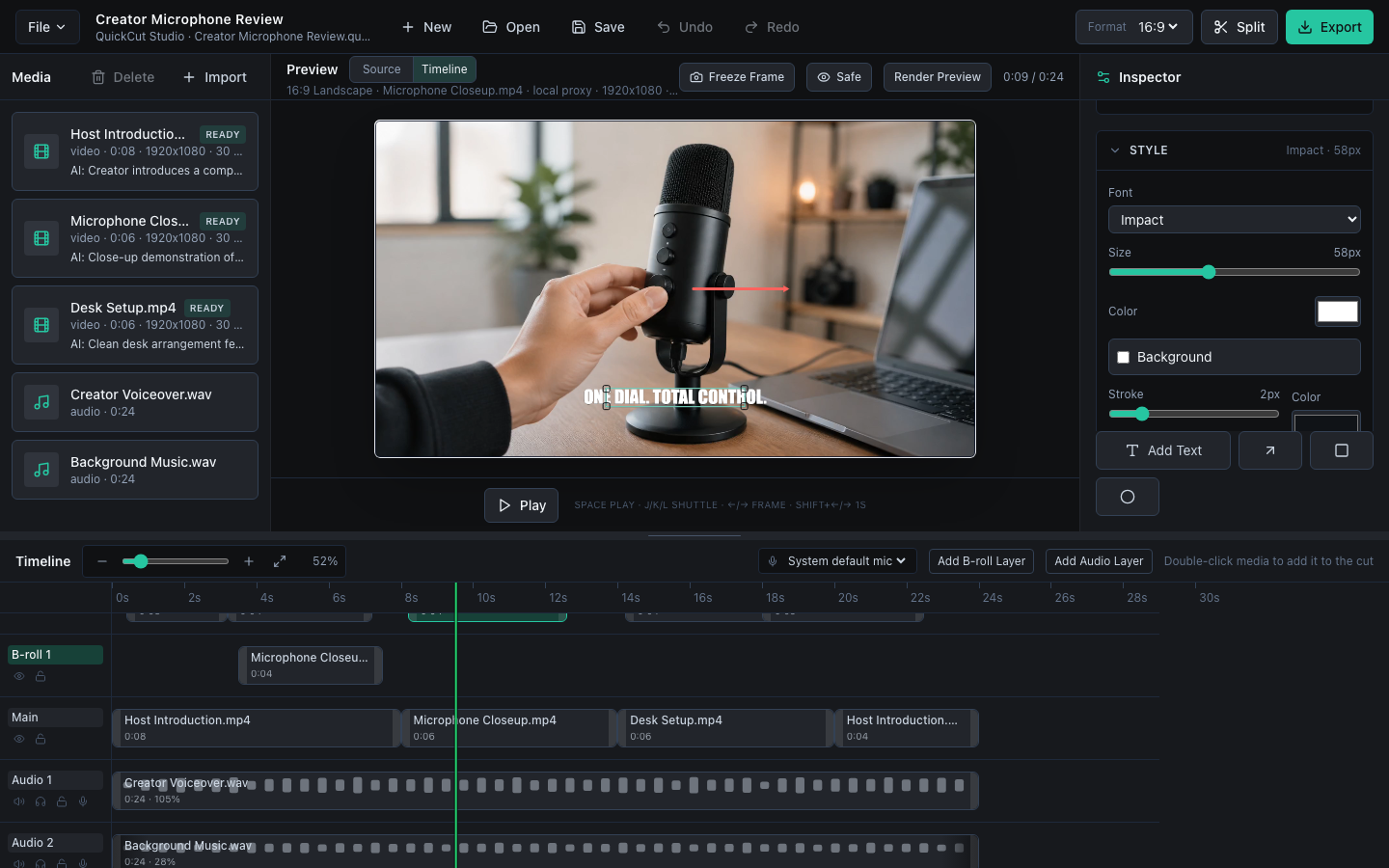
Style titles, lower thirds, and caption text in the preview. Add arrows, shapes, blur regions, and simple animations for tutorials, product reviews, lessons, and short-form video.
04 / Optional AI tools
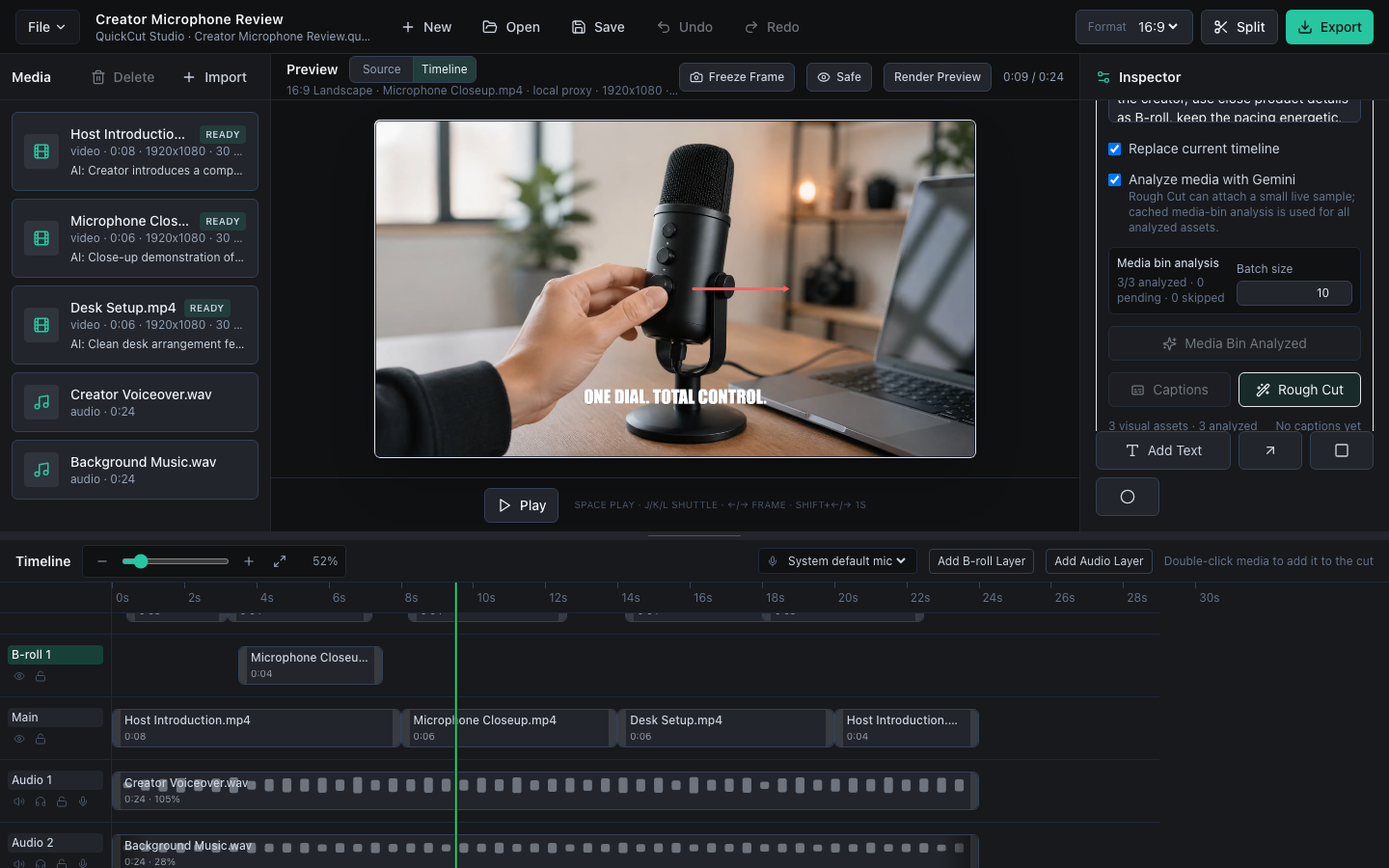
Turn narration into accurate, editable captions with AssemblyAI. Gemini or a local Ollama model can also describe and tag media, helping you find the right shot in a crowded bin.
05 / Deliver
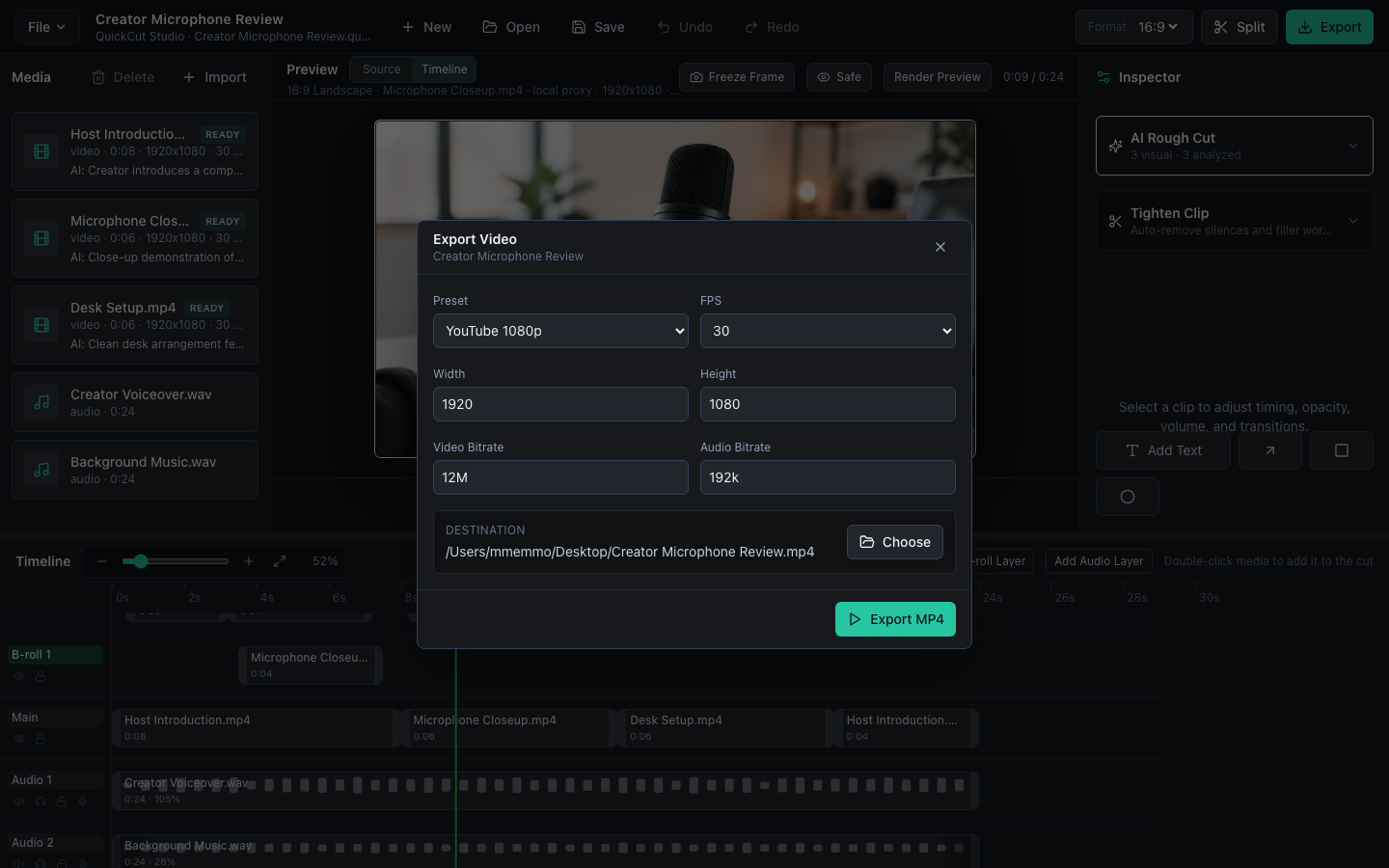
Finish with native media processing and practical presets for YouTube, Shorts, TikTok, and square social posts. QuickCut validates the result before calling the export complete.
Focused, not limited
Snapping, trimming, splitting, clip speed, freeze frames, timeline zoom, keyboard transport, multi-select, and cross dissolves.
Layered B-roll, alpha compositing, frame controls, rotation, keyframed motion, color correction, blur, chroma key, text, arrows, and shapes.
Proxy previews, narration recording, multiple audio tracks, autosave and recovery, project relinking, export progress, and output validation.
Local by default
Projects and media processing stay on your Mac unless you deliberately invoke an optional cloud AI feature.
Free public beta
Download QuickCut at no charge while this public beta continues. Use it on real projects and help shape the release.
Version 1.0.1 for macOS 12 or later. Compatible with Apple Silicon and Intel Macs.
Free browser companion
Trim, split, reorder, and caption video clips right in your browser. There is no account, upload, or watermark, and your media stays on your device.
Start editing