Published May 13, 2026

Most Useful Keyboard Shortcuts

  1.  Open a new browser tab

    Let’s start with one of the most useful shortcuts: opening a new tab.
    On Windows or Chromebook, press Ctrl + T.
    On Mac, press Command + T.
    This instantly opens a new tab in Chrome, Edge, Safari, or most modern browsers. I use this constantly when I’m researching something, opening Gmail, checking Google Drive, or jumping to a new website.

  2. Close the current tab

    Once you know how to open a tab, you should also know how to close one.
    Press Ctrl + W on Windows or Chromebook.
    Press Command + W on Mac.
    This closes the tab you’re currently using. It’s much faster than trying to move your mouse up to that tiny little X.

  3.  Reopen the tab you accidentally closed

    This one feels like magic the first time you use it.
    Press Ctrl + Shift + T on Windows or Chromebook.
    Press Command + Shift + T on Mac.
    This reopens the last tab you closed. So if you accidentally close a website, a Google Doc, or something you were reading, don’t panic. Just use this shortcut and bring it right back. Chrome’s official keyboard shortcut page lists this as the shortcut for reopening previously closed tabs. 

  4. Switch between browser tabs

    If you have a bunch of tabs open, you don’t need to click back and forth with your mouse.
    Press Ctrl + Tab to move to the next tab on Windows 
    On Mac, you can usually use Control + Tab.
    You can also go backward with Ctrl + Shift + Tab on Windows or Chromebook, or Command + Option + Left Arrow in Chrome on Mac. This is great when you’re comparing two pages or moving between email, a document, and a website.

  5. Copy, paste, and cut

    This is technically three shortcuts, but they belong together.
    Copy is Ctrl + C or Command + C.
    Paste is Ctrl + V or Command + V.
    Cut is Ctrl + X or Command + X.

6. Undo

This might be the most comforting shortcut ever created.
Press Ctrl + Z on Windows or Chromebook.
Press Command + Z on Mac.
If you delete something, type the wrong thing, move something by mistake, or mess up formatting, Undo can usually save you. It works in documents, spreadsheets, browsers, image editors, video editors, and a ton of other apps.

7. Select everything

This one is great when you want to quickly replace a full line, paragraph, document, or search box.
Press Ctrl + A on Windows or Chromebook.
Press Command + A on Mac.
For example, if you’re in the address bar, a Google Doc, or a text box, this selects everything in that area. Then you can copy it, delete it, or replace it.

8. Find something on a page

This is one of my favorites, especially when reading long websites, PDFs, or documents.
Press Ctrl + F on Windows or Chromebook.
Press Command + F on Mac.
Then type the word or phrase you’re looking for. Your computer will jump right to it. This is really useful for students doing research or anyone trying to find one specific detail without reading an entire page.

9. Switch between open apps

Instead of clicking around your dock or taskbar, you can jump between open apps.
On Windows, press Alt + Tab.
On Mac, press Command + Tab.
Hold the first key down and tap the second key to move through your open apps. This is great when you’re switching between Chrome, Word, Google Docs, email, or your video editor. Microsoft lists Alt + Tab as the shortcut for cycling through open windows. (Microsoft Support)

10. Take a screenshot or screen recording


Screenshots are useful for tutorials, tech support, school assignments, or saving something quickly.
On Windows, press Windows + Shift + S to open the snipping tool and select part of your screen. Microsoft lists this as the shortcut for selecting part of the screen for a screenshot. (Microsoft Support)
On Mac, press Command + Shift + 5 to open the screenshot and screen recording tools. Apple lists this as the shortcut for opening the Mac screenshot toolbar. 


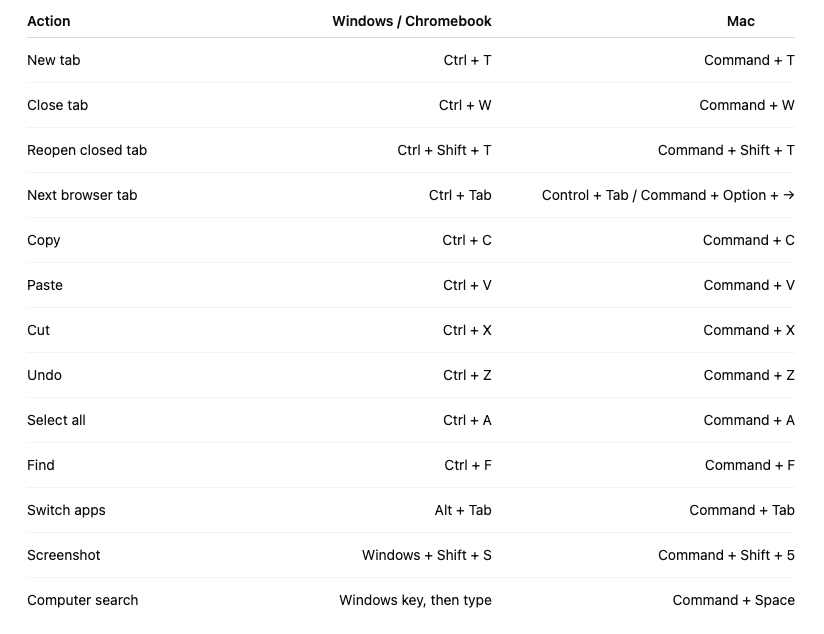
Quick On-Screen Cheat Sheet
Action
Windows / Chromebook
Mac
New tab
Ctrl + T
Command + T
Close tab
Ctrl + W
Command + W
Reopen closed tab
Ctrl + Shift + T
Command + Shift + T
Next browser tab
Ctrl + Tab
Control + Tab / Command + Option + →
Copy
Ctrl + C
Command + C
Paste
Ctrl + V
Command + V
Cut
Ctrl + X
Command + X
Undo
Ctrl + Z
Command + Z
Select all
Ctrl + A
Command + A
Find
Ctrl + F
Command + F
Switch apps
Alt + Tab
Command + Tab
Screenshot
Windows + Shift + S
Command + Shift + 5
Computer search
Windows key, then type
Command + Space

Key takeaways:
Focus the video on shortcuts people will actually remember and use.
Mention both Windows/Chromebook and Mac versions.
Show each shortcut on screen as you say it.
The best “wow” shortcut for many viewers will probably be reopen closed tab.

1. Search your computer instantly
This is one of the most underrated shortcuts.
On Windows, press the Windows key and start typing.
On Mac, press Command + Space.
This lets you launch apps, find files, open settings, and even do quick calculations without digging through menus.
For example, instead of clicking around to find Chrome, Word, System Settings, or Calculator, just hit the shortcut, type the first few letters, and press Enter.
This is one of the fastest ways to use your computer.

2. Jump to the address bar
Instead of clicking the top of your browser, use this shortcut.
On Windows or Chromebook, press Ctrl + L.
On Mac, press Command + L.
This highlights the address bar, so you can immediately type a website or search term.
So if you’re on a page and want to quickly search something else, don’t reach for the mouse. Just press the shortcut and start typing.

3. Paste without formatting
This one is great for students, teachers, and anyone working in Google Docs, Word, email, or websites.
This is my text
On Windows or Chromebook, press Ctrl + Shift + V.
On Mac, press Command + Shift + V.
This is my text
This is my text
This pastes text without bringing over all the weird formatting.
So if you copy something from a website and it comes in with a strange font, size, color, or spacing, use this shortcut instead of regular paste.
It saves a lot of cleanup time.

4. Emoji and symbols menu
This shortcut is surprisingly useful.
On Windows, press Windows + Period.
On Mac, press Control + Command + Space.
This opens the emoji and symbols picker. 
You can use it for emojis, checkmarks, arrows, copyright symbols, degree symbols, and other characters that are annoying to find manually.
This is especially helpful if you make slides, social posts, worksheets, or tutorials.

5. Lock your computer quickly
This is a great habit, especially at school, work, or anywhere shared.
On Windows, press Windows + L.
On Mac, press Control + Command + Q.
This immediately locks your computer without closing anything.
So if you’re stepping away from your desk, this is much faster than clicking through menus.

6. Rename a file quickly
This shortcut saves more time than people realize.
On Windows, click a file and press F2.
On Mac, click a file and press Return.
Now you can rename the file instantly.
This is great when organizing downloads, renaming screenshots, or cleaning up folders for a project.

7. Move between words while typing
This is a great shortcut for editing text faster.
On Windows or Chromebook, hold Ctrl and press the left or right arrow keys.
On Mac, hold Option and press the left or right arrow keys.
Instead of moving one letter at a time, your cursor jumps word by word.
Once you get used to this, editing text feels much faster.

8. Select text word by word
This builds on the last shortcut.
On Windows or Chromebook, hold Ctrl + Shift and use the left or right arrow keys.
On Mac, hold Option + Shift and use the left or right arrow keys.
This selects text one word at a time.
It’s perfect when you want to quickly replace part of a sentence without dragging your mouse around.

9. Reopen a closed browser tab
This one is a lifesaver.
On Windows or Chromebook, press Ctrl + Shift + T.
On Mac, press Command + Shift + T.
If you accidentally close a tab, this brings it right back.
You can even press it multiple times to reopen several recently closed tabs.
This is one of those shortcuts that feels small until the exact moment you need it.

10. Open clipboard history
This one is mainly for Windows users, and it’s really useful.
Press Windows + V.
Instead of only pasting the last thing you copied, this lets you see your clipboard history and choose from multiple copied items.
The first time you use it, Windows may ask you to turn clipboard history on.
This is extremely helpful if you’re copying several links, names, comments, or pieces of text.
For Mac, there isn’t a perfect built-in version of this same shortcut, but there are clipboard manager apps that add this feature.

Bonus: Quickly hide your desktop clutter
Here’s a bonus Mac shortcut that is great if you screen record or present.
On Mac, press Command + F3 or use the Show Desktop key if your keyboard has one.
This quickly reveals the desktop by moving your windows out of the way.
On Windows, you can press Windows + D to show the desktop.