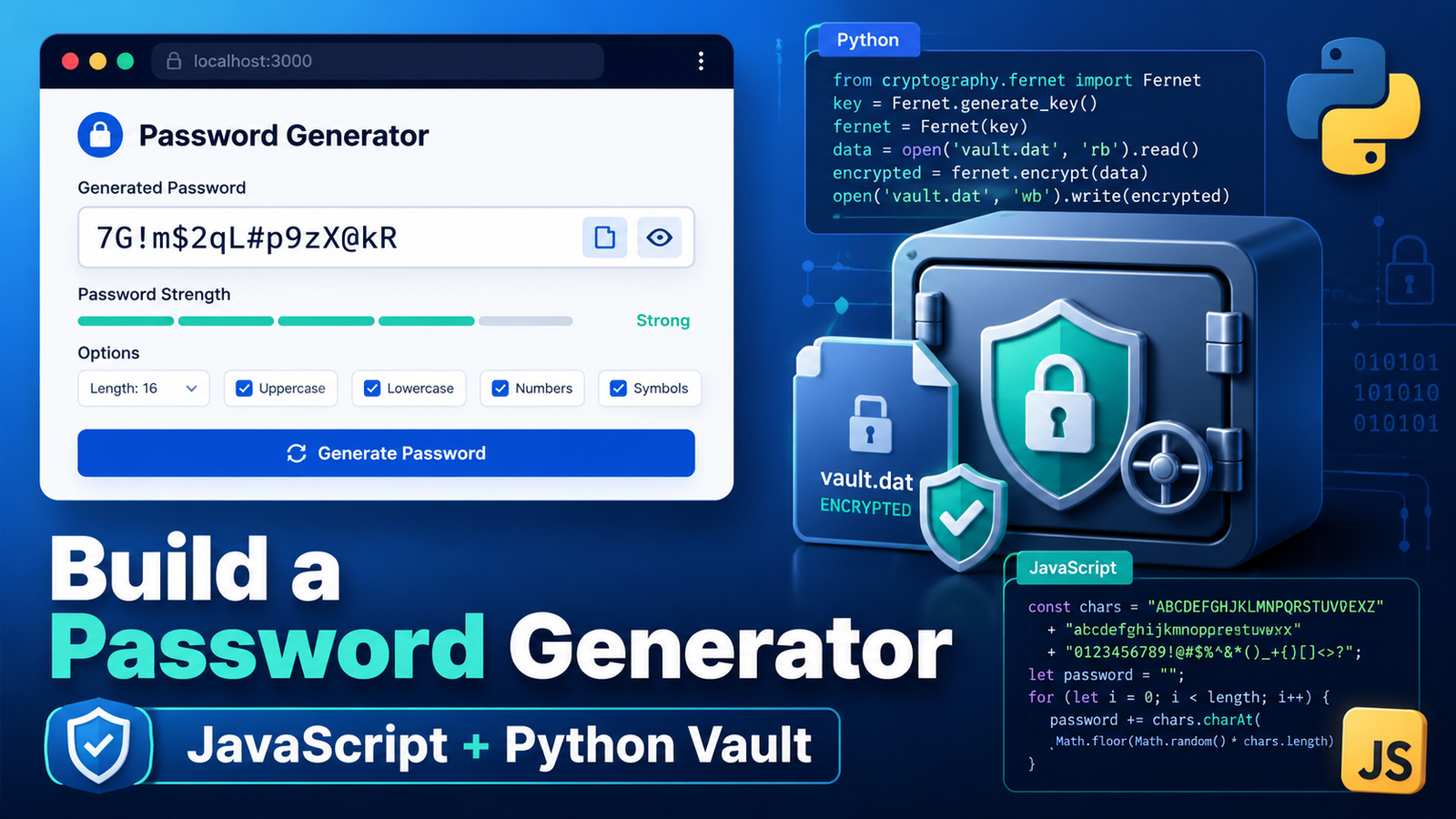
Passwords are something we use every day, which makes them a great subject for a practical coding project. In this tutorial, we will build the project in three stages:
-
A quick password generator using HTML and JavaScript
-
An enhanced generator with customization options
-
A local Python password vault that encrypts saved credentials
The first two projects can be published as tools on a website. The third project is intentionally local and is best treated as an educational demonstration of what goes into building password-management software.
Important: The Python vault is a learning project, not a replacement for an established, professionally audited password manager. Do not use it as the only storage location for critical personal, financial, school, or business credentials.
First: What Actually Makes a Good Password?
Before we generate passwords, it helps to know what we are aiming for. A good password has three properties:
1. It is long. Length is the single biggest factor in password strength. Every character you add multiplies the number of guesses an attacker has to make. A random 8-character password can fall to modern cracking hardware in hours; a random 16-character password from the same character set would take longer than the age of the universe. When in doubt, make it longer.
2. It is random. Humans are terrible at being random. We pick words, birthdays, keyboard patterns, and predictable substitutions like P@ssw0rd!. Cracking tools are built around exactly these habits — they try dictionary words, common phrases, and "leet speak" substitutions first. Tr7$kQzp!mW2vN#e is strong. Summer2026! is not, even though it technically has uppercase, lowercase, a number, and a symbol.
3. It is unique. A strong password that you reuse on five sites is only as safe as the weakest of those five sites. We will come back to this after Part 2, because it is the reason password vaults exist.
One more tip: if you need a password you can actually memorize (like the master password for a vault), a passphrase of four or five random words — something like copper-lantern-bicycle-thunder is both easier to remember and harder to crack than a short scrambled string.
The generators we are about to build take care of properties 1 and 2 automatically. That is the whole point: let the computer be random so you don't have to be.
Part 1: Build a Quick Password Generator
The first version has one job: create a random 12-character password and let the user copy it.
It uses a single HTML file containing the page structure, styling, and JavaScript. This is a project I have my intro to CS students do each year. It teaches them about good password rules and they learn about coding.
What the tool includes
-
A read-only box that displays the password
-
A Generate button
-
A Copy button
-
Uppercase letters, lowercase letters, numbers, and symbols
-
The browser’s Web Crypto API for random values
The basic HTML
<main class="card">
  <h1>Password Generator</h1>
  <p>Create a random 12-character password.</p>

  <input
    id="password"
    type="text"
    readonly
    aria-label="Generated password"
  >

  <div class="buttons">
    <button id="generateButton">Generate</button>
    <button id="copyButton">Copy</button>
  </div>

  <p id="message" aria-live="polite"></p>
</main>
The input is set to readonly, so visitors can copy the generated password without accidentally changing it.
The JavaScript
const passwordBox = document.getElementById('password');
const message = document.getElementById('message');

function randomIndex(max) {
  const numbers = new Uint32Array(1);
  crypto.getRandomValues(numbers);
  return numbers[0] % max;
}

function generatePassword() {
  const characters =
    'ABCDEFGHIJKLMNOPQRSTUVWXYZabcdefghijklmnopqrstuvwxyz0123456789!@#$%&*';

  let password = '';

  for (let i = 0; i < 12; i++) {
    password += characters[randomIndex(characters.length)];
  }

  passwordBox.value = password;
  message.textContent = '';
}
The characters string contains every character the generator is allowed to use. The loop runs 12 times, chooses one character during each pass, and adds it to the password.
We use crypto.getRandomValues() instead of Math.random(). Math.random() generates numbers that appear random but are actually predictable, making it suitable for games and animations but not for security. crypto.getRandomValues() uses the operating system's secure source of randomness to produce unpredictable values, making it the correct choice for passwords, encryption keys, tokens, and other security-related data.
Add the Copy button
async function copyPassword() {
  if (!passwordBox.value) {
    generatePassword();
  }

  try {
    await navigator.clipboard.writeText(passwordBox.value);
    message.textContent = 'Copied!';
  } catch {
    passwordBox.select();
    document.execCommand('copy');
    message.textContent = 'Copied!';
  }
}

document
  .getElementById('generateButton')
  .addEventListener('click', generatePassword);

document
  .getElementById('copyButton')
  .addEventListener('click', copyPassword);

generatePassword();
Calling generatePassword() at the bottom creates a password as soon as the page loads.
Live Demo and Download the Full Code Here
Part 2: Build an Enhanced Password Generator
The first version is useful, but visitors may want more control. In Part 2, we add:
-
A password-length slider
-
Lowercase, uppercase, number, and symbol options
-
A basic strength indicator
-
A check that prevents all character options from being turned off
-
A guarantee that each selected character type appears at least once
These are add-ons I have my students add to their programs to take them to the next level.
Add the controls
<div class="row">
  <label for="length">
    Length: <strong id="lengthValue">16</strong>
  </label>

  <input
    id="length"
    type="range"
    min="8"
    max="32"
    value="16"
  >
</div>

<div class="options">
  <label>
    <input id="lowercase" type="checkbox" checked>
    Lowercase
  </label>

  <label>
    <input id="uppercase" type="checkbox" checked>
    Uppercase
  </label>

  <label>
    <input id="numbers" type="checkbox" checked>
    Numbers
  </label>

  <label>
    <input id="symbols" type="checkbox" checked>
    Symbols
  </label>
</div>
The slider controls password length, while the checkboxes decide which groups of characters are available.
Organize the character sets
const sets = {
  lowercase: 'abcdefghijklmnopqrstuvwxyz',
  uppercase: 'ABCDEFGHIJKLMNOPQRSTUVWXYZ',
  numbers: '0123456789',
  symbols: '!@#$%&*?'
};
Keeping the character sets in an object makes it easier to match each checkbox with the correct characters.
Generate a customized password
function randomCharacter(characters) {
  return characters[randomIndex(characters.length)];
}

function generatePassword() {
  const selectedSets = Object.keys(sets)
    .filter(id => document.getElementById(id).checked)
    .map(id => sets[id]);

  if (selectedSets.length === 0) {
    message.textContent = 'Choose at least one character type.';
    passwordBox.value = '';
    strength.textContent = '';
    return;
  }

  const length = Number(lengthSlider.value);
  const allCharacters = selectedSets.join('');

  let password = selectedSets
    .map(randomCharacter)
    .join('');

  while (password.length < length) {
    password += randomCharacter(allCharacters);
  }

  passwordBox.value = shuffle(password);
  message.textContent = '';
  updateStrength(length, selectedSets.length);
}
The first characters are selected directly from each enabled group. This guarantees that a password with all four options enabled contains at least one lowercase letter, uppercase letter, number, and symbol.
The rest of the password is filled from the combined character list.
Shuffle the password
function shuffle(text) {
  const characters = [...text];

  for (let i = characters.length - 1; i > 0; i--) {
    const j = randomIndex(i + 1);

    [characters[i], characters[j]] =
      [characters[j], characters[i]];
  }

  return characters.join('');
}
Without this step, the required characters would always appear at the beginning in a predictable order. Shuffling places them throughout the generated password.
Add a simple strength label
function updateStrength(length, variety) {
  const score = length + variety * 3;

  strength.textContent =
    score >= 28 ? 'Strength: Strong' :
    score >= 20 ? 'Strength: Good' :
                  'Strength: Basic';
}
This is intentionally a simple educational indicator. A real password-strength system would consider many more factors and should not promise that a password is unbreakable.
Publish Part 2
Live Demo and Download the Full Code Here
One Strong Password Is Not Enough
Now you can generate excellent passwords on demand. Here is the uncomfortable follow-up question: how many accounts do you have? Most people have somewhere between 80 and 150. And here is why each one needs its own password.
Credential stuffing: the reuse attack
Websites get breached constantly including big, well-known ones. When a site is breached, the email addresses and passwords from that site frequently end up in giant lists traded and sold online. Attackers then run automated tools that try those exact email-and-password combinations against other sites: your email provider, your bank, Amazon, PayPal, streaming services, everything. This attack is called credential stuffing, and it is one of the most common ways accounts get taken over.
Notice what this means: if you reuse a password, the security of your bank account is no longer determined by your bank. It is determined by the security of the weakest site where you ever used that password some forum you signed up for in 2015 and forgot about.
The fix is simple to state: every account gets its own random password. Then a breach at one site is contained to that one site.
You can check whether your email address has already appeared in known breaches at is a free, well-respected service run by a security researcher. It is an eye-opening exercise.
A few more practical habits worth adopting
- Guard your email account above everything else. Your email is the master key to your digital life, because nearly every "Forgot password?" link lands there. Anyone who controls your inbox can reset their way into your other accounts. Give your email account your longest password and turn on two-factor authentication for it first.
- Consider a separate email address for financial accounts. Using one address for banking and investments and a different one for shopping, newsletters, and forum signups has two benefits: the financial address rarely appears in marketing databases and breach dumps, and a phishing email sent to the "public" address claiming to be your bank is instantly recognizable as fake.
- Turn on two-factor authentication (2FA) wherever it is offered. An authenticator app or hardware key means a stolen password alone is not enough to get in. Prefer app-based codes or passkeys over text-message codes when you have the choice.
- Never answer security questions honestly. Your mother's maiden name and your first school are discoverable facts. Generate random answers and store them like passwords.
- Change passwords when there's a reason, not on a schedule. Modern guidance (including NIST's) says forced routine password changes lead to weaker passwords. Change a password when a service reports a breach, when you may have been phished, or when you know it is weak or reused.
The obvious problem
If you follow this advice, you now have a hundred passwords that look like Tr7$kQzp!mW2vN#e and no human can memorize a hundred of those. You need somewhere safe to keep them.
That is exactly the problem password vaults solve, and it is why Part 3 of this project builds one: not because you should use our homemade version for your real passwords (you shouldn't. more on that below), but because building one teaches you what is actually happening inside the tools that do this professionally.
Part 3: Build a Local Password Vault with Python
The first two tools generate passwords, but they do not save them. Part 3 explores a much larger question:
What would it take to build a program that generates and stores passwords?
For this version, we move away from a public website and build a local desktop application with Python and Tkinter.
The application can:
-
Create an encrypted vault protected by a master password
-
Generate passwords
-
Save a website, username, password, and notes
-
Search saved entries
-
Edit and delete entries
-
Copy a password to the clipboard
-
Clear the copied password from the clipboard after 30 seconds
-
Lock the vault without closing the application
Why make this version local?
An online password manager is not automatically unsafe, but it is much harder to build correctly. A public version would need much more than PHP and MySQL.
You would need to think carefully about:
-
Secure account authentication
-
HTTPS and secure session handling
-
Protection against cross-site scripting and request forgery
-
Rate limiting and brute-force protection
-
Encryption and key management
-
Database and server security
-
Backups that do not expose decrypted information
-
Password recovery and account recovery
-
Monitoring, updates, testing, and independent security review
OWASP’s security guidance emphasizes that cryptographic storage, key management, browser storage, and server security all require separate protections. A local design removes the public server and database, reducing the number of exposed components, but it does not make the application automatically safe.
Malware, a compromised computer, weak master passwords, insecure backups, clipboard history, and programming mistakes can still expose information.
How the local vault works
The application does not save the master password. Instead, it uses the master password and a random salt to derive a 256-bit encryption key with scrypt.
def derive_key(master_password, salt):
    kdf = Scrypt(
        salt=salt,
        length=32,
        n=2**17,
        r=8,
        p=1
    )

    return kdf.derive(
        master_password.encode("utf-8")
    )
Scrypt is a memory-hard key derivation function. It is deliberately expensive to compute, which is a feature, not a flaw. If someone steals your encrypted vault file, they cannot try billions of master-password guesses per second the way they could against a fast hash; each guess costs real time and memory. The settings used in this project follow OWASP's listed minimum scrypt configuration when Argon2id is unavailable.
The salt is a random value stored alongside the vault. It ensures that two people with the same master password end up with completely different encryption keys, and it defeats precomputed "rainbow table" attacks.
The program uses Python’s secrets module to generate passwords.
def generate_password(length=20):
    groups = [
        string.ascii_lowercase,
        string.ascii_uppercase,
        string.digits,
        "!@#$%^&*()-_=+[]{};:,.?"
    ]

    characters = [
        secrets.choice(group)
        for group in groups
    ]

    combined = "".join(groups)

    characters.extend(
        secrets.choice(combined)
        for _ in range(length - len(characters))
    )

    secrets.SystemRandom().shuffle(characters)
    return "".join(characters)
Python recommends the secrets module rather than the standard random module when generating passwords, tokens, and other security-sensitive values the same pseudorandom-versus-cryptographic distinction we saw with Math.random() and crypto.getRandomValues() in Part 1.
The full vault contents are converted to JSON and encrypted with AES-256-GCM before being written to disk.
nonce = os.urandom(12)

plaintext = json.dumps({
    "entries": entries
}).encode("utf-8")

ciphertext = AESGCM(key).encrypt(
    nonce,
    plaintext,
    ASSOCIATED_DATA
)
AES-GCM is authenticated encryption. It protects the confidentiality of the vault and detects tampering: if even one byte of the file is altered or corrupted, decryption fails loudly instead of silently returning garbage. The nonce is a random "number used once" that ensures encrypting the same vault twice never produces the same ciphertext.
What is actually inside the vault file?
It is worth being precise about what does and does not end up on disk. The saved vault.json file contains:
- The format version — so a future version of the program knows how to read old files
- The scrypt settings (n, r, p) — stored in the clear, because they are not secret; they just tell the program how to re-derive the key from your master password
- A random salt — also not secret; it is useless without the master password
- A random nonce — required for decryption, safe to store
- The ciphertext — every website name, username, password, note, and timestamp, all encrypted as one opaque block
What it does not contain: your master password (never written anywhere, in any form), and no readable website names, usernames, notes, or passwords. If you open the file in a text editor, the entries are an unreadable base64 blob. An attacker who copies the file gets nothing without the master password which is exactly why there is also no recovery if you forget it.
Security realities to be aware of
Encryption protects the file at rest. It cannot protect you from everything, and being honest about the limits is part of building security software. Things to be wary of with this project or any password tool:
- A weak master password undermines everything. Scrypt slows down guessing, but it cannot save
password123. The master password is the one password you must make long this is the perfect place for a multi-word passphrase. - Malware on the computer wins. If a keylogger records your master password as you type it, or malware reads the decrypted entries out of the program's memory while the vault is unlocked, the encryption never comes into play. No password manager (homemade or commercial) can protect credentials on a machine an attacker already controls. Keep your operating system updated and be careful what you install.
- The clipboard is a leak. Anything you copy can be read by other programs, and clipboard-history features (and clipboard syncing across devices) may quietly keep every password you have ever copied. Our vault clears the clipboard after 30 seconds, which helps, but clipboard managers may have already recorded the value.
- Backups can betray you. Backing up the encrypted
vault.jsonis smart (and necessary) a dead hard drive otherwise takes your passwords with it). But exporting passwords to a plain-text or CSV file for "backup" creates an unencrypted copy that may linger in downloads folders, cloud drives, and trash bins indefinitely. - An unlocked vault is an open vault. Anyone who sits down at your computer while the vault is unlocked can read everything. Lock it when you step away. That is why the app has a Lock button.
- Screen sharing and shoulder surfing count too. The "show password" feature is convenient and dangerous in equal measure during a screen share or in a coffee shop.
Install the Python dependency
Python 3.10 or newer is recommended.
python3 -m pip install cryptography
Run the application
python3 local_password_vault.py
On the first launch, the application asks you to create a master password of at least 12 characters.
The encrypted vault is stored in the user’s home folder:
~/.local_password_vault/vault.json
Download Part 3
The complete project includes:
-
local_password_vault.py -
requirements-password-vault.txt -
LOCAL_PASSWORD_VAULT_README.md
Live Demo and Download the Full Code Here
Important limitations
This application demonstrates several important ideas, but it is not a complete commercial password manager.
It does not include:
-
Independent security auditing
-
Browser extensions or automatic form filling
-
Device synchronization
-
Secure cloud backup
-
Multi-factor authentication
-
Master-password recovery
-
Protection from malware running on an unlocked computer
-
Extensive accessibility, compatibility, and penetration testing
There is also no way to recover the vault if the master password is forgotten.
For real-world credentials, use a mature password manager with a strong security history and independent review which brings us to the next section.
Password Managers Worth Trusting with the Real Thing
So what should you use for your actual passwords? Look for tools with a few specific qualities: zero-knowledge encryption (the company cannot read your vault, even on their own servers), published independent security audits, a clean breach track record, and ideally open-source code that outside researchers can inspect. As of this writing, these options have earned strong reputations:
- — Open source, independently audited (results published), SOC 2 certified, with a genuinely useful free tier and inexpensive paid plans. Syncs across all devices and browsers. Widely recommended as the best starting point, and you can even self-host it if you want full control.
- — A polished commercial option with . Its standout design decision is the Secret Key: a second random key stored only on your devices is combined with your master password, so even a full compromise of 1Password's servers is not enough to decrypt your vault. No free tier, but excellent apps and family plans.
- — Free, open source, and completely local: your vault is a single encrypted file on your computer, with no company, no server, and no subscription involved. Philosophically, it is the grown-up version of the vault we built in Part 3. You handle syncing and backup yourself (many people put the encrypted file in their own cloud storage), which is either a feature or a chore depending on your comfort level.
- — From the team behind Proton Mail; open source, audited, end-to-end encrypted, with a solid free tier. A nice extra is built-in email aliases, so each site can get a unique throwaway address — which pairs nicely with the email advice earlier in this article.
- — Free and already on your iPhone, iPad, and Mac (and available in Chrome/Edge on Windows via iCloud). End-to-end encrypted, protected by your device biometrics, with passkey support and breach alerts. If you live entirely in the Apple ecosystem, it is a legitimate choice, not just a convenience.
A note on track records: they matter, and they are checkable. LastPass, once the biggest name in the category, suffered a major 2022 breach in which attackers stole customers' encrypted vault backups and the fallout demonstrated why details like strong key-derivation settings and honest incident communication are part of what you are paying for. Before committing to any password manager, spend five minutes searching its name plus "security audit" and "breach." The good ones make that research easy.
Whichever you choose, the setup is the same: install it, create one excellent master passphrase (four or five random words), turn on two-factor authentication for the manager itself, and then let it generate and remember a unique random password for every account, replacing your old reused ones as you log into each site.
What About Your Browser's "Save Password" Feature?
When Chrome (or Safari, Edge, or Firefox) offers to save a password, should you say yes?
Honest answer: built-in browser password managers are far better than reusing passwords or keeping them in a notes file, and they have improved a lot Google Password Manager now supports on-device encryption, breach checkups, and passkeys. Saying yes is a perfectly reasonable choice for everyday accounts. But you should understand what you are trusting:
- Your browser account becomes the master key. Saved passwords sync through your Google (or Apple/Microsoft/Firefox) account. Anyone who gets into that account may get your entire password list. If you use a browser's password manager, protecting that one account with a strong unique password and two-factor authentication (or a passkey) is non-negotiable.
- There is often no separate vault password. Dedicated managers lock your vault behind its own master password that must be entered per session. Browsers historically unlock saved passwords whenever you are logged into the browser so anyone with access to your unlocked computer may be able to view or use them. Turn on the option to require your device password or fingerprint before filling or viewing passwords (Chrome and Safari both offer this now).
- Browser extensions are a real risk surface. A malicious or compromised extension with broad permissions can watch pages as the browser autofills credentials into them. Audit your extensions occasionally and uninstall anything you do not actively use.
- Autofill can be tricked. Attacks have used invisible login forms to harvest autofilled credentials. Most browsers have added mitigations, but "fill only after a click" settings are worth enabling.
- Never export to CSV casually. Every browser offers a one-click export of all saved passwords to a plain-text file. That file is a disaster waiting to happen it is unencrypted, and it tends to get forgotten in a Downloads folder.
- You are locked into the ecosystem. Less a security issue than a practical one: browser vaults do not travel well across browsers and platforms, and they lack extras like secure notes, sharing, or storing non-web credentials (Wi-Fi passwords, software licenses, those randomized security-question answers).
A fair summary: browser password storage with a well-protected, 2FA-enabled account is fine for most everyday logins (and dramatically better than reused passwords). For the accounts where a takeover would really hurt (email, banking, work), a dedicated password manager with its own master passphrase adds a meaningful extra wall.
Final Thoughts
A password generator is a small project that can become a useful tool almost immediately. Adding customization makes it more practical, and building a local encrypted vault shows how quickly the security requirements grow once an application begins storing sensitive information.
That progression is what makes this a valuable three-part coding project. It begins with something a beginner can build in minutes and ends with a realistic look at encryption, local storage, user interfaces, and responsible software development.
Build the first two versions for your website. Experiment with the third version locally. Most importantly, treat the password vault as a way to learn what secure software requires, not as a shortcut around using an established password manager.